


Need help planning a trip?
Check out this guide for instructions and tips on how to use Community Transit's trip planning tool: Plan My Trip
Our Plan My Trip online tool makes planning your transit ride easy. Map your trip, explore your options, and choose the plan that works best for you.
Get a trip plan in two easy steps
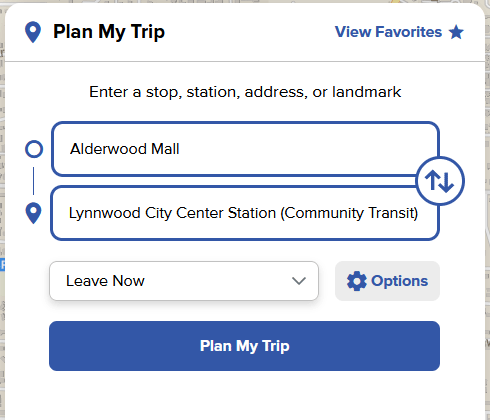
- Enter your starting point
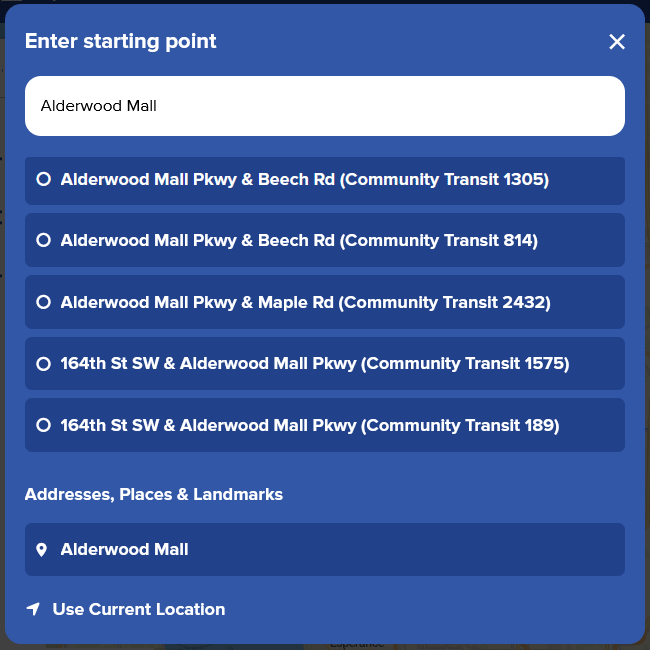
Click into the top field to open the blue location search box. Enter your starting address and select the best match from the search results list. You can also use popular landmarks, transit stops, or select "Use Current Location" at the bottom if you have location services enabled. - Enter your destination
Click into the bottom field, enter the details of the place you want to go and select from the search box as well. Once you select a location for both starting point and destination, use the blue "Plan My Trip" button that appears to search for available trip options.
Do even more with Plan My Trip
Features and customizations
Looking for more trip options? Our tool has a number of different features to help you plan a trip that fits your preferences.

Enter start and end points using addresses, intersections, landmarks, or by selecting transit stops or stations.

Set a start or arrival time if you‘re planning a trip in the future or at a specific time of day.

See how much walking may be required and choose options that reduce the amount of walking.

Include or exclude different modes of travel into your trip plan, such as biking, light rail, ferries, or Park & Rides.

See fare breakdowns for your trip so you‘ll know exactly how much to pay.

Print or save
Print or save your trip details trips to have handy for when you're on your way.
Advanced features
View your different trip options
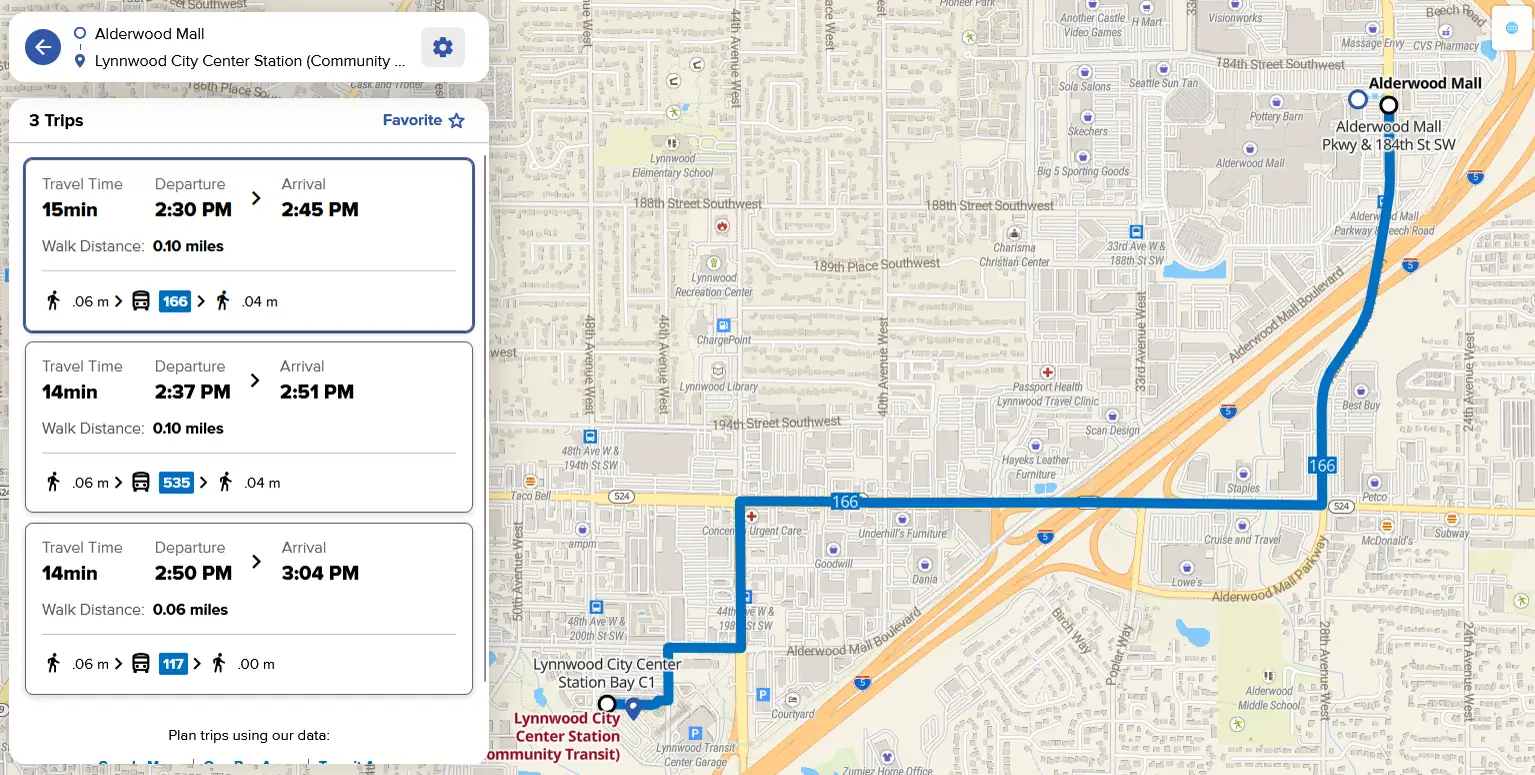
Once you have selected start and end points for your trip from the search list, the blue "Plan My Trip" button will appear. Click the button to start your search. The available transit options for your trip will display in the same space.
Hover over one of the available trips to see the route on the map and compare. Clicking on a trip will give you more details, including fare and step-by-step instructions.
Tips:
- Travel times: Every trip will provide a predicted travel time. These are estimates, so budget extra time in your planning.
- Select your locations from the search list: Make sure your start and end points are chosen from the search results list. If you don't have both locations set, the "Plan My Trip" button will not appear.
- Make changes: Update your start or end point from the trip plan list by clicking the blue back arrow in the top left corner to go back to the location entry step.
- Return trip: Clicking the arrows button on the right side of the locations fields will let you swap your start and end points for planning a return trip.
How to find detailed instructions for your trip
Click on a trip from the list to see:
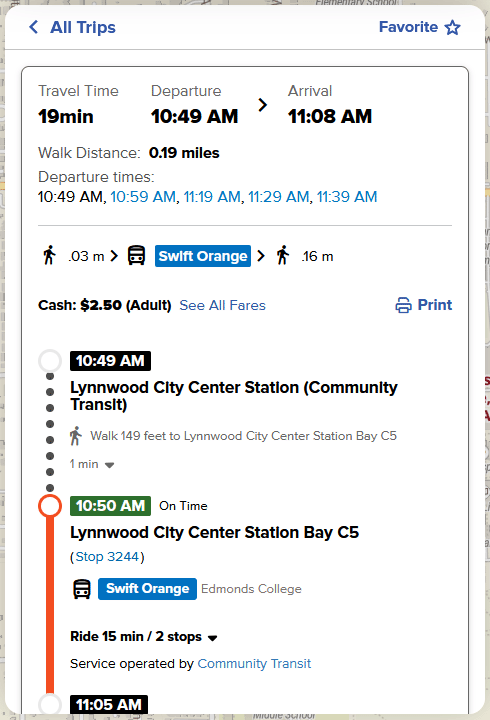
- Step-by-step instructions: See when and where to get off of your bus, fares, and timing details for each step.
- Trip map: View a map of your trip route. Click on a trip plan to see it displayed on the page's interactive map.
- Departure times: Plan My Trip will show you the first available departure time for your trip, followed by a list of other upcoming times for the same trip plan. Click on one of the alternate departure times to see the timeline for that trip.
- Print your trip: Click "Print" to print a copy or to save your trip details as a PDF. You can choose to include the map in your printout.
Want to check a different trip?
Click on the "All Trips" link in the top left corner to go back to the list to view to see other trip plans.
Plan ahead by setting a date and time for your trip
Not leaving right now? Plan My Trip will let you set a time and date for your trip.
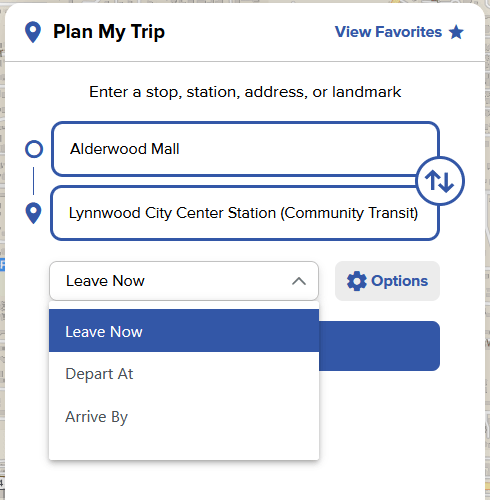
The tool defaults to showing transit options for immediate travel. To change this, click the Leave now drop-down to make modifications.
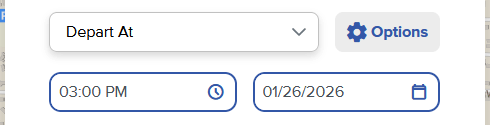
- Depart at: Use this to see trip options for a specific time of day.
- Arrive by: Use this to plan your trip by when you want to arrive at your destination. Plan My Trip will let you know what time you need to leave to get there on time.
- Date: Choosing either time option above will make the date picker appear. To see schedules for a specific date, enter the date you plan to travel in that field to right of the time. Schedules may vary on different days of the week or holidays.
See schedules based on how you want to travel
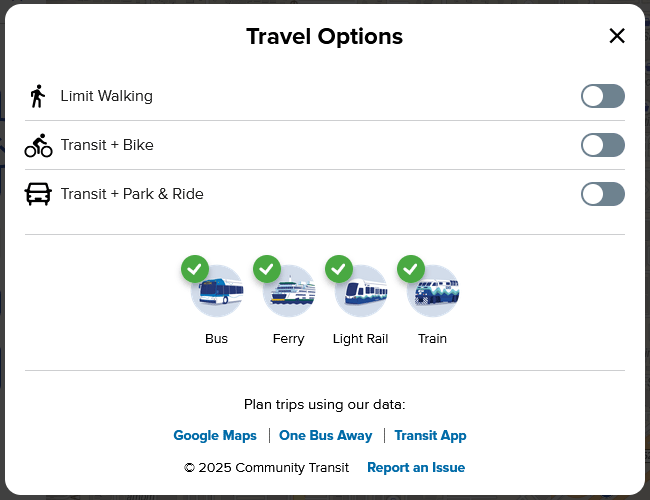
Want more control over your trip preferences? Click the Options button to the open the menu.
Here is what you can change:
- Toggle Limit walking to show you the trips with the least amount of walking.
- Toggle Transit + Bike to see your best options for combining biking with transit.
- Toggle Transit + Park & Ride if you're planning on driving part of the way to one of the many Park & Rides in the region.
- Use the Mode icons to include or exclude different types of transit in your itinerary, like light rail or ferry. Unchecking a travel mode will exclude it from your trip results.
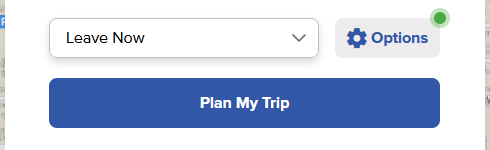
If you made changes to any trip options, a green indicator dot will appear next to the button to remind you that you've made changes. Not getting the trip results you were expecting? Check to make sure you have the correct options selected.
FAQ
FAQ ideas:
- Why aren't I seeing any trip results?

Still need help planning a trip?
Contact our Customer Care team if you need more assistance. We can help with custom trip planning, printed route maps and schedules, and more.
- Email riders@commtrans.org
- Call (800) 562-1375, (425) 353-RIDE (7433), or TTY Relay: Dial 711
- Find us in person at the Ride Store: Monday–Friday, 7 a.m.–6 p.m.; Saturday 8:30 a.m.–4 p.m.