

See where your bus is right now
Check out this guide for instructions and tips on how to use Community Transit's real-time information tool: Find My Bus
Wondering where your bus is or how much time you have to catch it? Find My Bus has answers, with real-time GPS data to keep you updated on your next ride.
How to find where your bus is right now
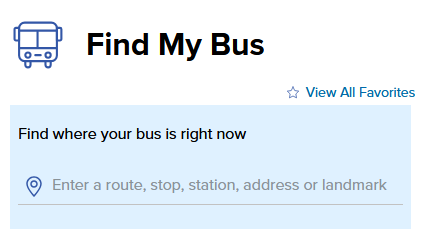
Finding your next ride is easy! On the Find My Bus page, simply type in the search box to get started.
Ways you can search for your bus

Enter your route number or color
Already know which route you're taking? Enter the route number or Swift color to see where it is and how long until it reaches your stop.

Use a transit stop number or station
Enter your stop number or station name to see the list of routes that will arrive and their estimated arrival times.

Search with an address, landmark, or your current location
Get a list of bus stops near you by entering your address, a nearby landmark, or by enabling location services on your device. Find My Bus will show you nearby stops and when buses will be arriving.
Tips for searching
Search by route number or name
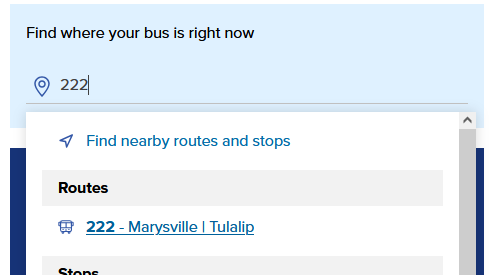
Find your bus in real-time
- Search for your route: Enter the route number or Swift color in the "Find My Bus" box.
- Select your route: Choose the route you want from the list.
On the route page, you'll see:
- Next bus arrivals: A list of stops and when the next bus will arrive.
- Real-time map: A map showing the route and where buses are now.
- Scheduled times: A full schedule of your selected route for planning your trip under the "Schedule" tab.
For more help:
Visit our How-to guide for Maps & Schedules
Searching by transit stop number or station
Find Your Next Bus
- Search by stop: Enter your bus stop's name, address, or ID number in the "Find My Bus" search box.
- How to find a stop ID: Check the Maps & Schedules section or use the website's main search bar to look up a specific route or stop. If you're waiting at a bus stop, the stop ID will be printed on the schedule posted at the stop.
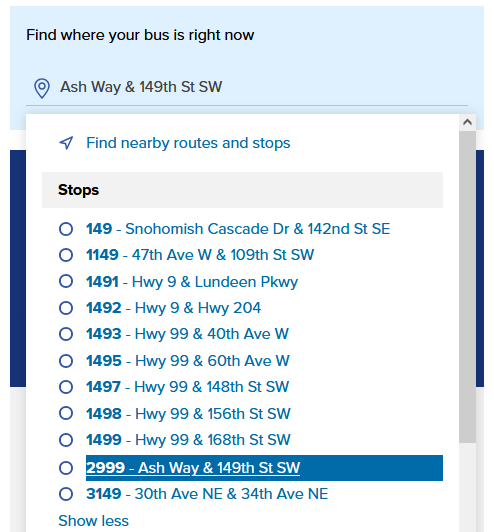
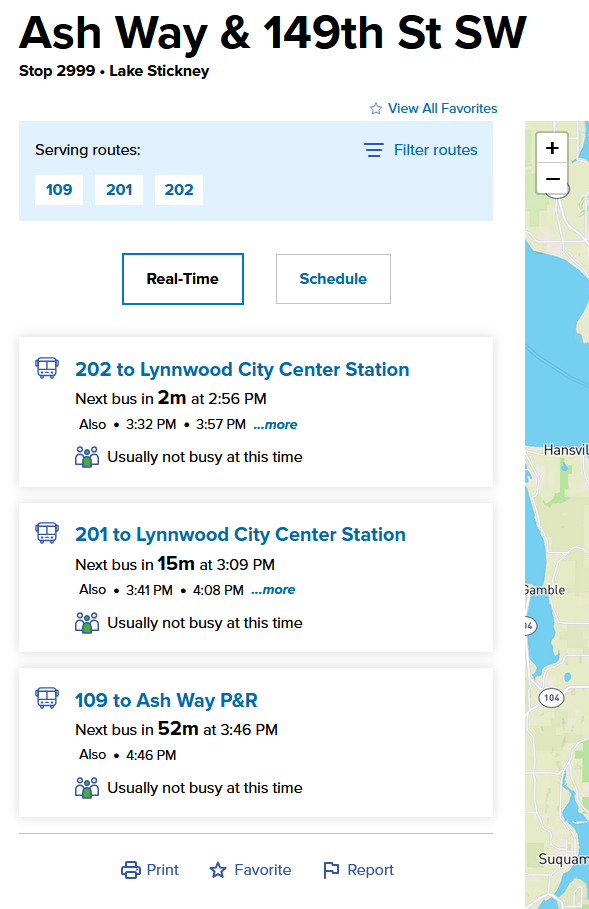
After selecting your bus stop, you'll see:
- Left side: A list of routes and their arrival times.
- Right side: A map showing the stop and bus locations.
For Transit Centers:
- Filter routes: Use the "Filter routes" link to see specific routes shown only.
- Bus bay numbers: Find the bay number next to the arrival time.
- Details about that center: Click the "Details" tab to see more info about that transit center including the number of parking spaces available and other amenities.
Searching with an address or your location
Find nearby buses and stops
You can find buses and stops near you in two ways:
- Search by address: Enter an address, landmark, or cross streets into the "Find My Bus" blue search box and select from the list of results.
- Use your location: Click "Find nearby routes and stops" to search based on your current location.

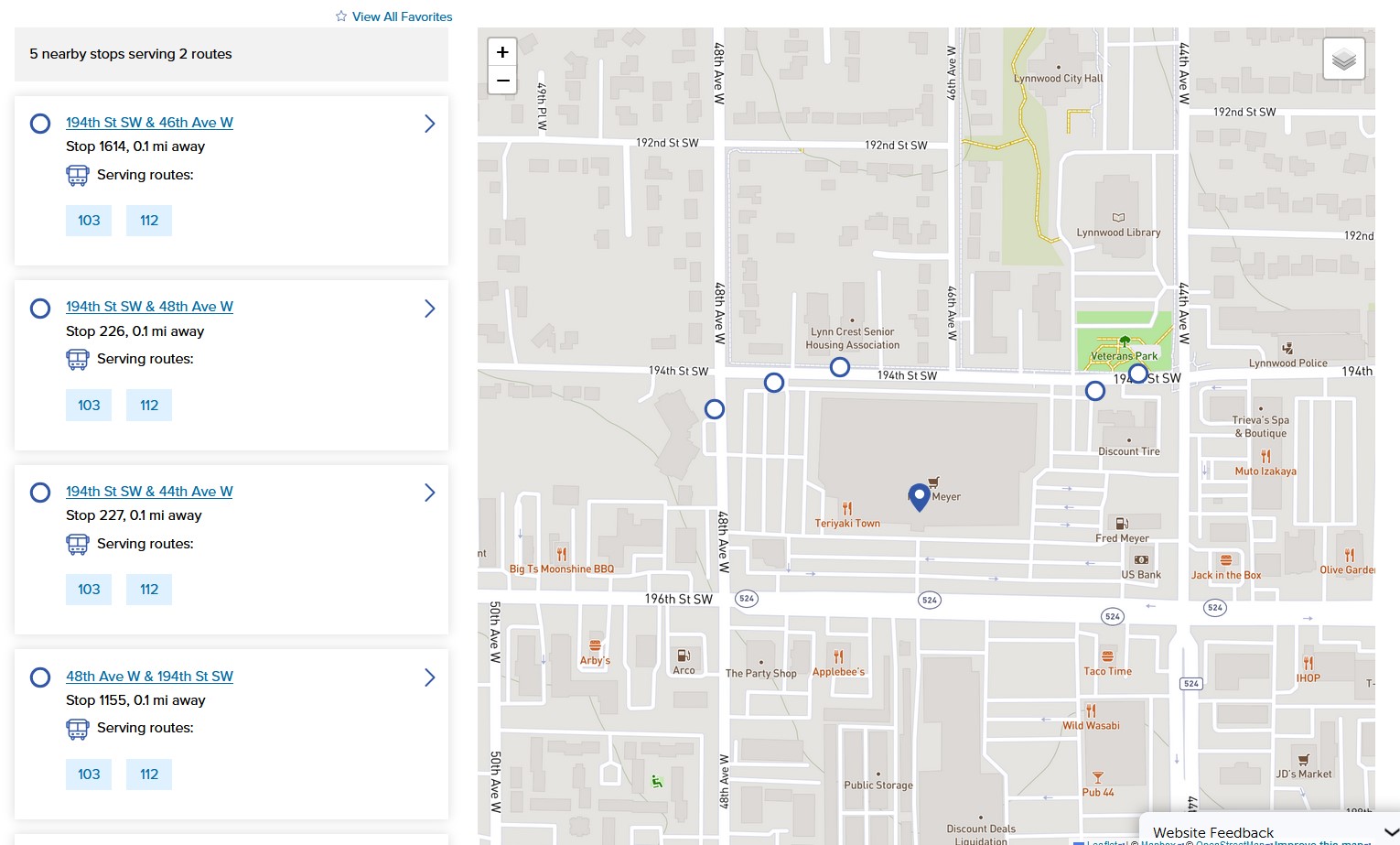
After selecting your location, you'll see:
- Nearest stops: A list of the five closest stops.
- Route information: The routes that serve each stop.
- Map: These stops and routes will be shown on a map.
- Real-time updates: Click on a stop or a route to see live arrival times and bus locations.
FAQ
FAQ ideas:
- How accurate is the bus location data?

Still need help planning a trip?
Contact our Customer Care team for additional assistance. This team of transit experts can help you with questions and concerns, and can help with personalized trip planning and even printed route maps and schedules.
- Email us at riders@commtrans.org
- Call us at (800) 562-1375, (425) 353-RIDE (7433), or TTY Relay: Dial 711
- In-person at the Ride Store: Monday – Friday: 7 a.m.-6 p.m., Saturday 8:30 a.m.-4 p.m.

How to use Plan My Trip
Planning your next bus trip has never been easier! Community Transit's trip planner simplifies travel in Snohomish County.
Enter your starting point, destination, and time to get custom routes, real-time arrivals, and transfer details. Tailor your trip and easily print or share your plan to stay prepared.
What is Plan My Trip?
Plan My Trip is our online trip planning tool. With it, you can enter in your starting point or current location, select where you want to go, and the tool will let you know what bus routes or modes of transportation will get you there with several different trip options to let you select the best one for your needs. Additional features let you customize certain aspects of your trip.
Welcome to Plan My Trip
When you first open the Plan My Trip tool, you'll see the trip planning input module in a light blue box, and a map ready to display your trip results once you enter in your start and end points of your destination.
Getting started
Step 1: enter start and end points
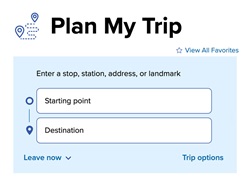
The quickest way to get started with planning your trip is to enter your trip's start and end points into the form fields. You may use addresses, transit stops, stations, or landmarks as points for your trip or use your current location from your location-enabled device.
Enter your trip's starting point into the top input field, and the end point into the bottom field.
Step 2: view your trip options
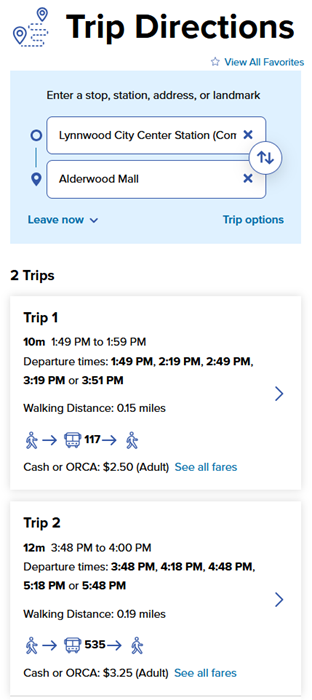
Once you have entered valid start and end points for your trip, the Plan My Trip tool will display up to five different transit options to get you where you want to go.
Tips for trip planning results:
- Each trip will show a total travel time from point to point. These are estimates only, so make sure to plan for extra time if needed.
- Trip results can be sorted by travel time, walking distance, arrival time, or departure time using the drop-down menu at the top of the list.
- Up to five trip results will be shown, but some trips may have more options. Click the "Show more" link at the end of the list to see more trip options.
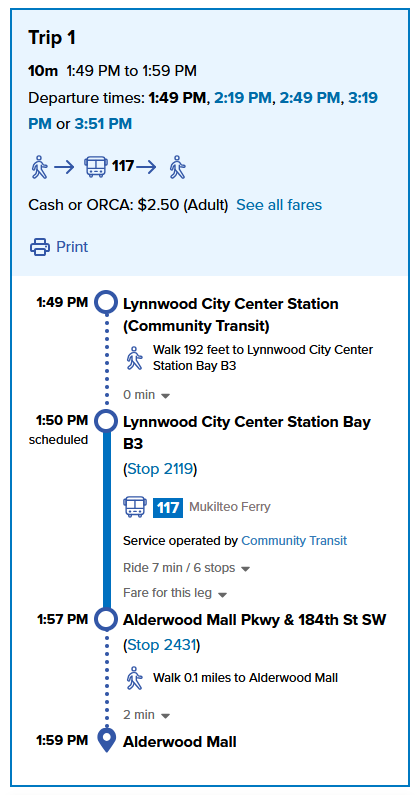
- Click on a trip to see a detailed breakdown of your transit options, what fare you'll pay, and see the route displayed on the tool's map.
- If you don't see any trips, make sure you correctly filled out the start and end points in the input fields. Make sure to select a search result when you start typing into the box. If your entry is incomplete the field will be highlighted in red and no results will display.
- Clicking the arrows button on the right side of the input fields will let you swap your start and end points for planning a return trip.
Step 3: See your detailed itinerary
Click on one of the trips from your search results to see detailed steps of your transit options, what fares to pay, and print or save your trip for easy viewing offline. When you select a trip, the route will be displayed on the map.
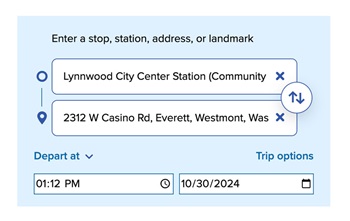
Plan ahead with arrival or departure times
Not leaving right now? Plan My Trip will let you set a time and date for your trip so you can plan an upcoming trip or traveling at a certain time of day.
By default the tool will show you transit options if leaving immediately. To change this, click the "Leave now" drop-down menu and choose either arrival or departure time and enter in the time and date of your trip.
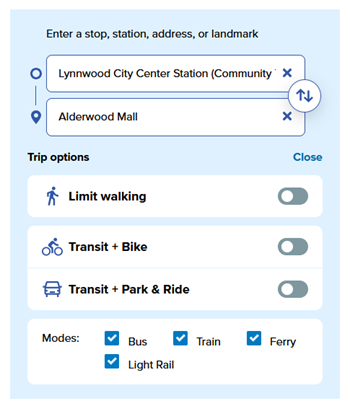
Choose your transit options
Tailor your trip for how you want to travel! Click the "Trip options" link to the open the menu.
- Select "Limit walking" to only show you the trips with the least amount of walking.
- Traveling by bike? Choose "Transit + Bike" to see your best options for combining biking with transit.
- Choose "Transit + Park & Ride" if you're planning on driving part of the way to one of the many Park & Rides in the region.
- Use the "Modes" check boxes to include or exclude different types of transit in your itinerary. Unchecking a box will exclude it from your trip results.
Step 4: customize your trip (optional)
Optionally, you may customize parts of your trip based on your needs.